Workspace Overview
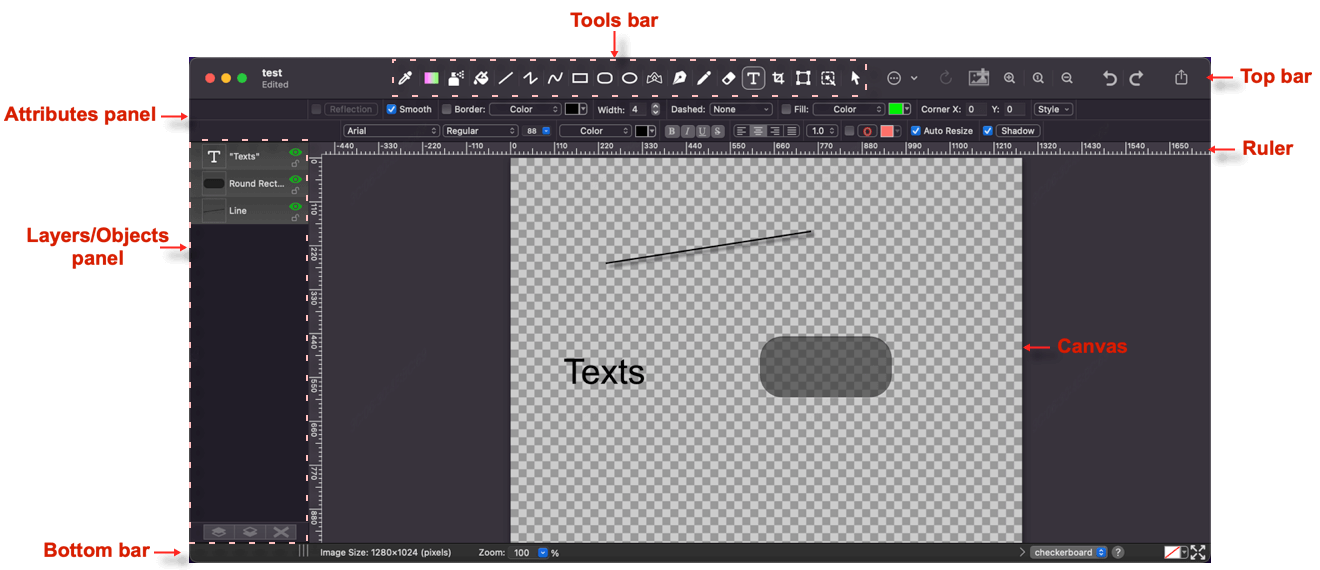
When you open or create an image, the main document window appears. The workspace is divided into several key areas:
- Toolbar: Located at the top.
- Attributes Panel: Located just below the toolbar.
- Layers Panel: Located on the left side.
- Canvas: The central editing area, including rulers.
- Bottom Bar: Located at the bottom of the window.
Toolbar

The toolbar provides quick access to essential tools and commands:
- Tools: Select your drawing or editing tool. You can also choose tools from the Tool menu. See Tools.
- Edit: Access common editing commands for the selected object or area.
- Rotate: Rotate or resize the selected object or area.
- Add Image: Open the content library to import an image or reuse a previously imported one. You can also drag an image onto the canvas.
- Zoom: Zoom In, Actual Size, and Zoom Out buttons for the canvas.
- Share: Share your image with other apps or services.
- Undo / Redo: Quickly undo or redo your recent actions.
Attributes Panel

This panel displays the properties of the currently selected tool or object. You can adjust settings like color, gradient, pattern, stroke, and shadow here. See Modify Attributes.
Layers Panel
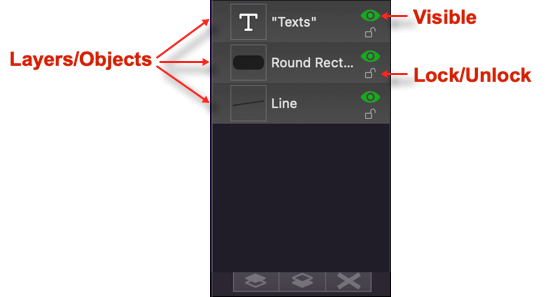
The Layers panel on the left displays all objects and layers in your document. Select an item to highlight it on the canvas. You can manage layers here, including deleting, merging, arranging, renaming, locking, and toggling visibility. See Manage Layers.
Canvas
The central area where you draw and edit. It includes rulers for precise alignment.
- Change ruler units: View > Ruler Units
- Adjust the origin: View > Ruler Start Point
- Toggle the grid: View > Show Canvas Grid
- Pan the view: Hold
Spaceand drag with any tool. The pointer changes to a closed hand while panning. - Zoom the view: Hold
Spaceand scroll. For exact magnification, type a percentage in the bottom bar; the toolbar offers Zoom In, Actual Size, and Zoom Out steps.
Bottom Bar

The bottom bar displays document information and quick settings:
- Image Size: Displays the current dimensions of your canvas.
- Zoom Level: Shows the current magnification percentage.
- Cursor Position: Displays the exact coordinates of your pointer.
- Canvas Background: Toggle the workspace background between a checkerboard pattern and a solid color.
Tips
This only affects the workspace display and is not saved with your image. It helps you identify transparent areas.
- Image Background Color: Set the actual background color of your document. This color will be saved and exported with your image.
Tips
Choose the transparent color if you want a clear background.
- Resize: Quickly open the resize dialog. See Resize Canvas.